Everyday Tips
Collected from the Pulse Dashboard training materials — chiefly the advanced techniques handout (PDF, October 2019) — and articles on leahyconsulting.com. New to Pulse Dashboard? Start with Pulse Dashboard fundamentals.
The right mouse button is your friend
Right-clicking is the fastest way around Pulse Dashboard. Tabs, the blue report header bar, report column headers and many other places all offer right-click menus with the tools for customizing exactly that spot.
Refreshing data
- Refresh one or all modules with the button at the top of the screen
- Refresh a single tab by double-clicking the tab name
- Refresh a single box by double-clicking the blue bar at the top of the box
Adding tabs
Click the + icon near the end of the row of existing tabs in a module to add a new tab.
Color-code your tabs
From version 5.41, you can add color to tab rows to organize reports at a glance — for example, one color for the information tabs you use daily and another for analysis tabs. Right-click any tab, choose Tab Color, and pick the color you want.

Format numbers your way
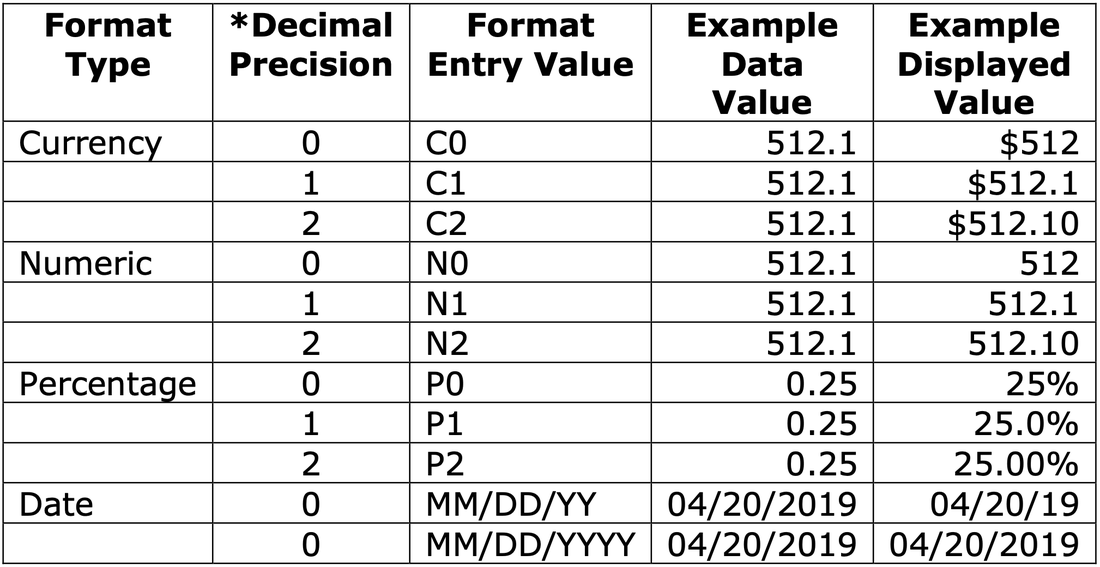
Numeric columns can be formatted with your choice of decimal places, percent signs and currency symbols — for existing columns in the Column Chooser and for new columns created with a custom formula, and any user can set it up. Enter a format code in the Format column of the Column Chooser: C0–C2 for currency, N0–N2 for numeric, P0–P2 for percentage (the digit sets the decimal places), plus alternate date formats. Columns can also follow the maximum decimal places defined by Macola® in the database.
Share your work
Save and Share appears as an option on many screens (and via right-click on a report or tab header). Publish Tab is available on every tab via right-click on the tab header — the easiest way to hand a finished view to your colleagues.
Tip
Need a hand? The PULSE support team is happy to help — call (513) 723-8095 or email Support@PulseDashboard.com.